Webflow AI Code Components: What Marketing Teams Can Actually Build

/
12 June 2026
Table of contents
There's a moment every marketing team on Webflow knows too well.
You have a campaign going live in two weeks. You need an interactive ROI calculator on the landing page — the kind that makes a visitor stop, plug in their numbers, and suddenly feel the problem you solve in their gut. You know it's possible. You can picture exactly how it should work.
So you write the ticket. You explain it to the developer. And then you wait.
Not because the developer is slow. Not because the team doesn't care. But because there are twelve other things in the queue, and a custom interactive component isn't a five-minute job.
Two weeks later, the campaign launches with a static table instead.
This is the gap Webflow has been trying to close since they first introduced code components. And on April 30, 2026, they made a significant move toward closing it by shipping AI code components.
What Webflow AI Code Components actually are
The short version: you describe what you want in plain English, and Webflow builds it.
The slightly longer version: the Webflow AI Assistant generates a React-based code component directly on the component canvas, pulling from your site's existing design system (your fonts, colors, spacing, components). The result is interactive, reusable, and on-brand from the first output. From there, you iterate on it through conversation with the AI, refine it through further prompts, or open the code and edit it directly.
No switching tools. No copy-pasting into a separate environment. No boilerplate setup.
The component lives in your Webflow workspace alongside everything else. Once it's built, you can drop it onto any page.
To see how this works in practice, here's a quick demo of the AI Assistant building a component from start to finish.
To get the best results, be as detailed as possible in your prompt — reference your site's style guide, and specify exactly what you're looking for, like the kind of animation, the easing, and the interaction behavior you want. The more precise your instructions, the closer the first output will be to your vision.
What you can actually build with it
This is where it gets concrete. The official Webflow docs mention pricing calculators, search filters, animations, and location finders. That's the surface. Let's go deeper.
Below are four components our team built as an example for this article — real prompts, real outputs, real notes on what needed refining after.
1. A pricing calculator
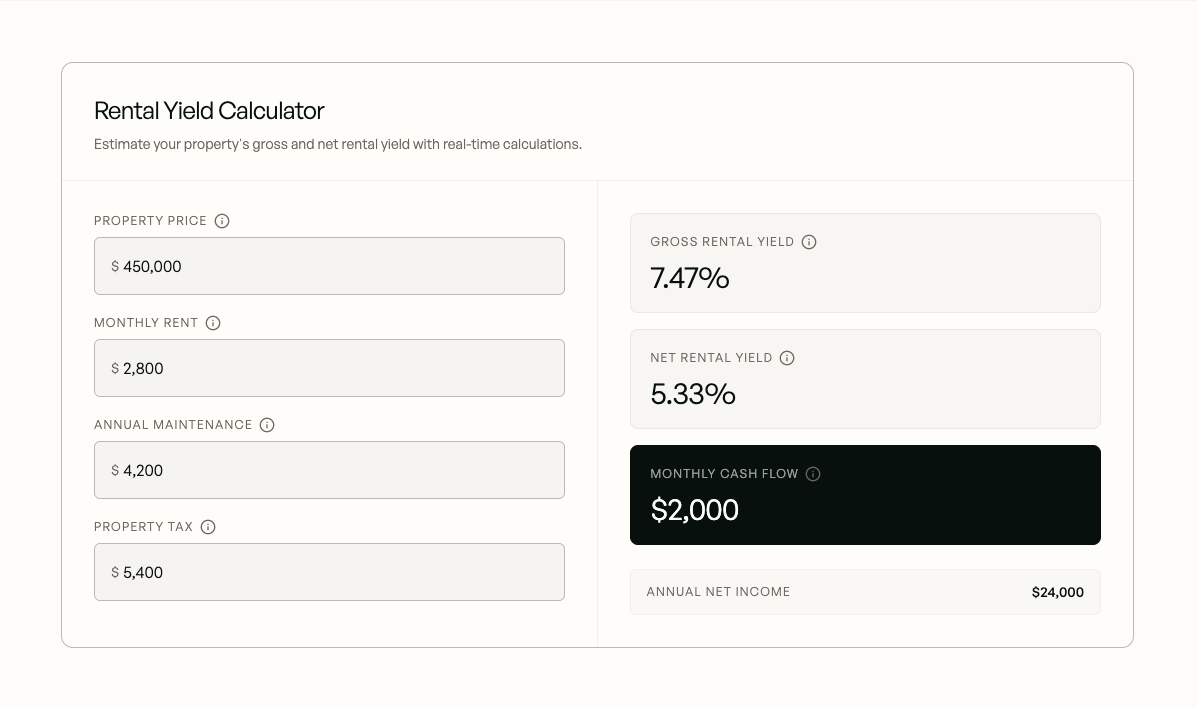
This is the most common use case for a reason. B2B SaaS marketing teams build pricing pages that explain plans, but rarely let visitors model their own scenario. A calculator changes that. Instead of "our Growth plan starts at $299/month," the visitor types in their team size, their use case, their frequency — and sees a personalized number.
The emotional logic here is simple: when someone calculates something themselves, they trust it more than a table you put in front of them.
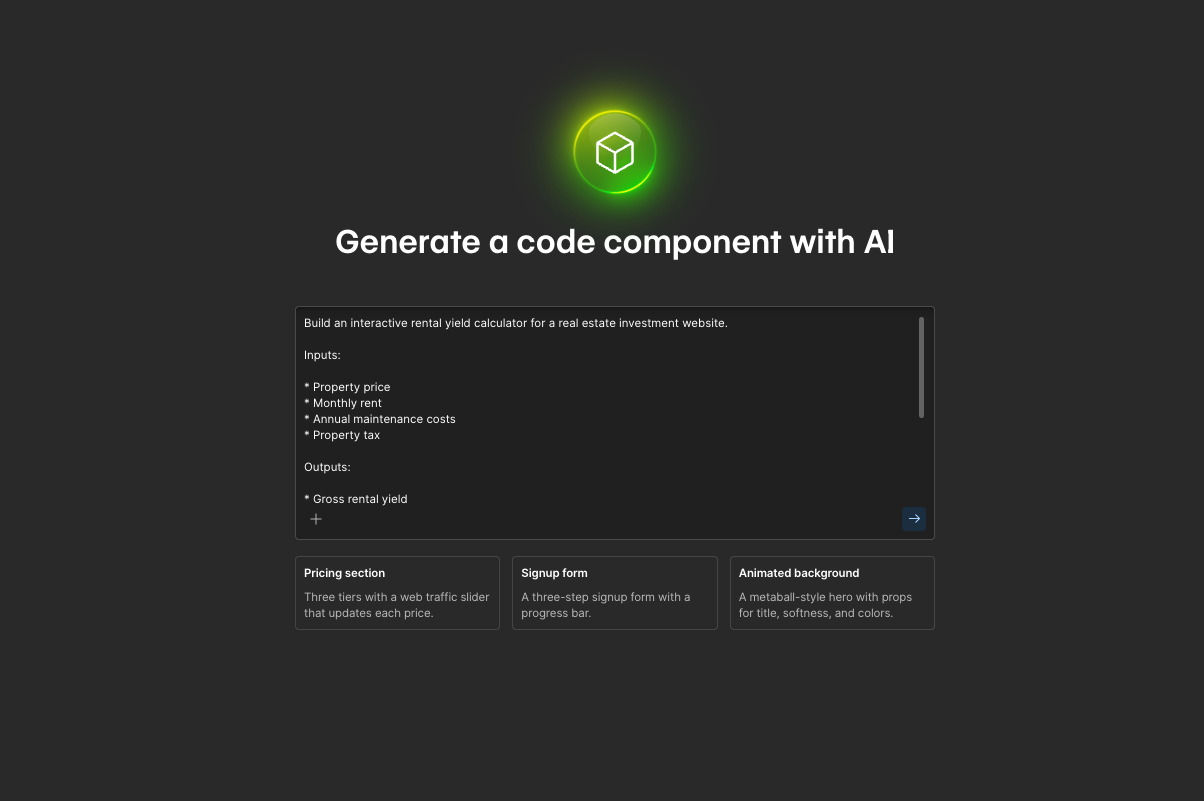
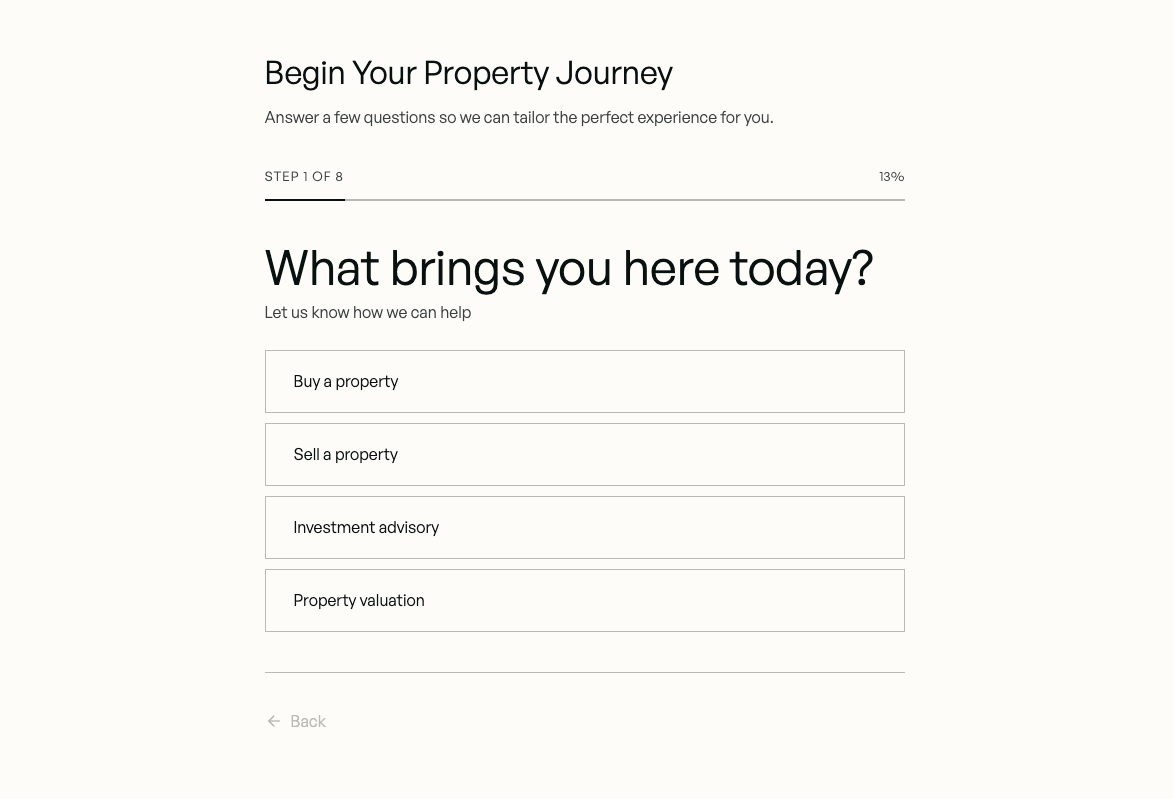
2. A multi-step lead form with conditional logic
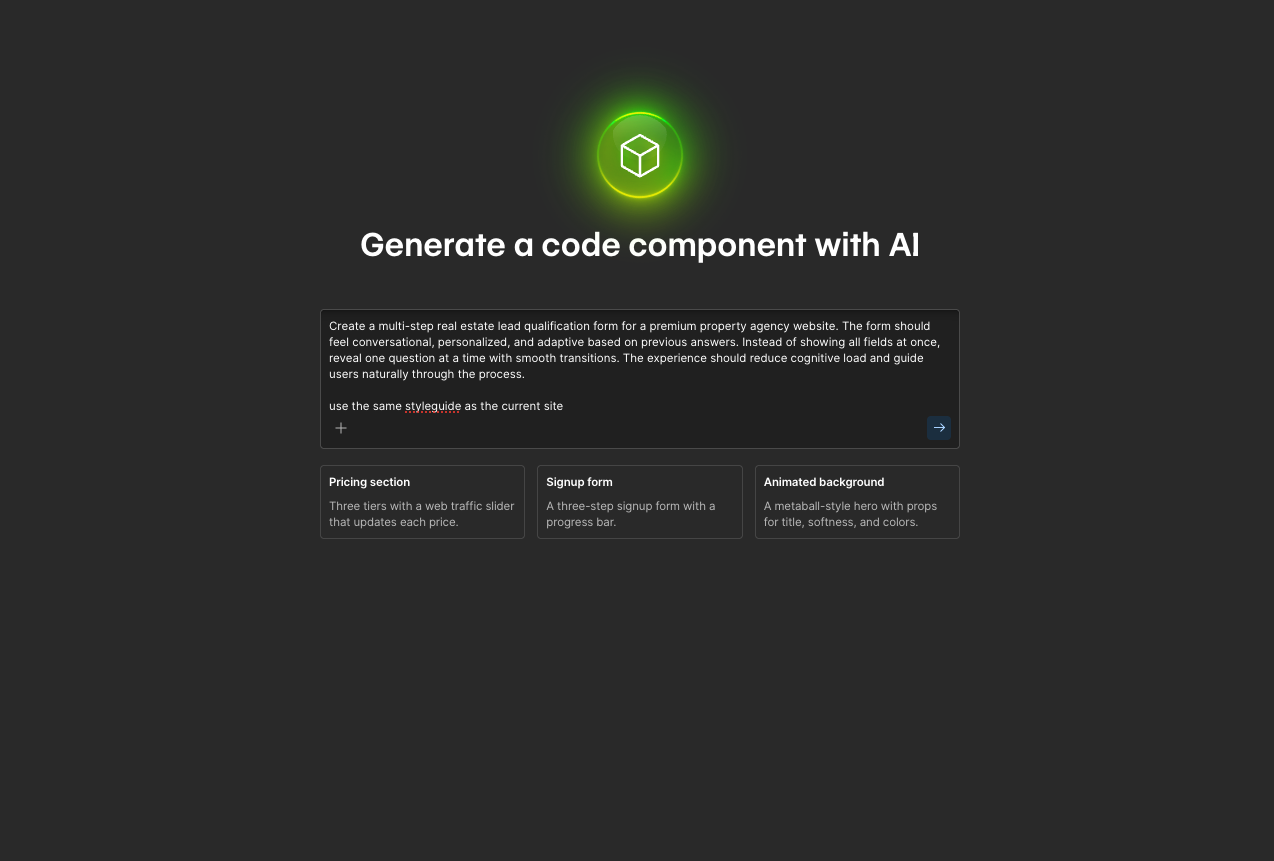
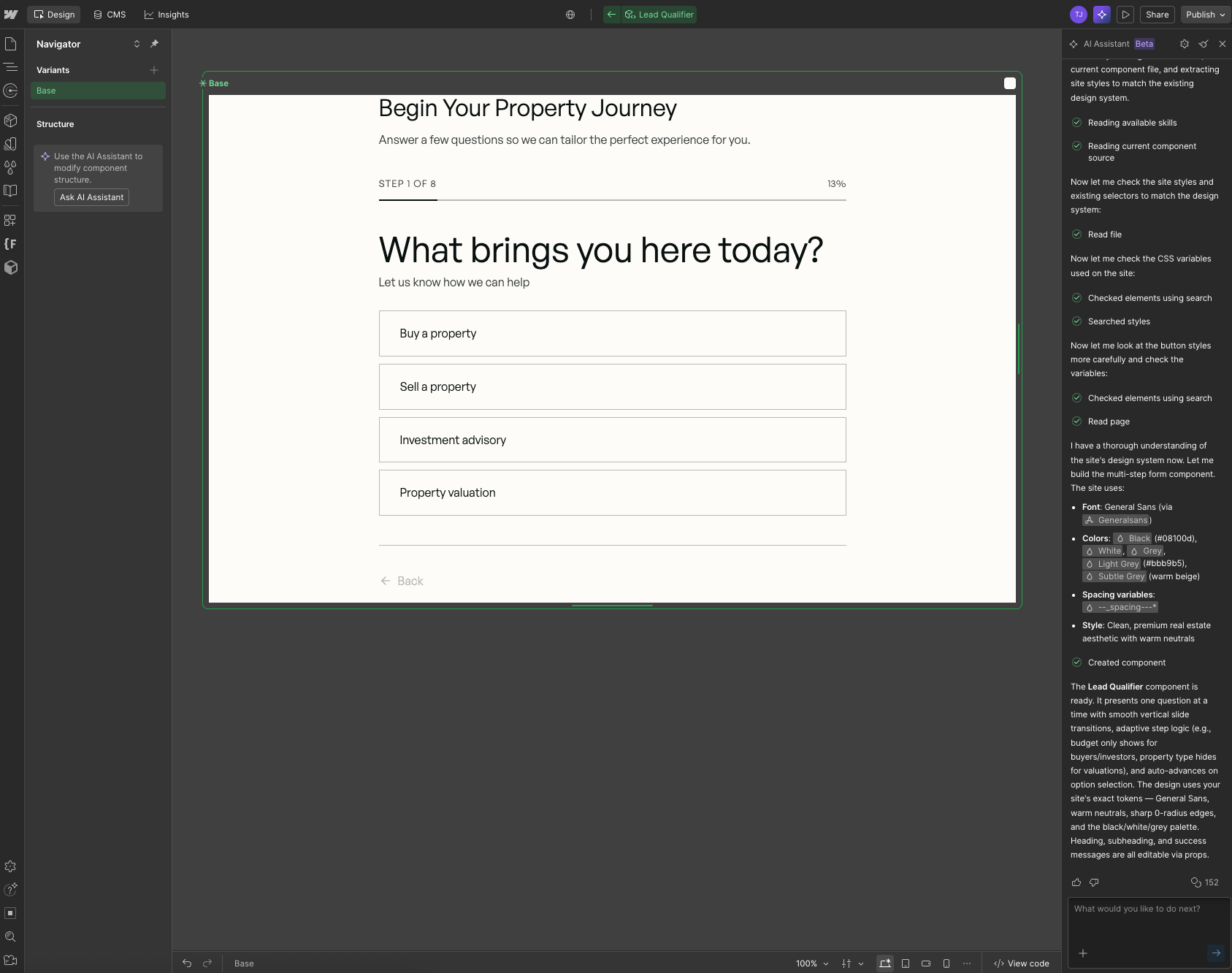
Standard Webflow forms are fine for simple contact requests. But multi-step forms, where the next question adapts based on the previous answer, are a different category. They feel personal. They reduce cognitive load. And they convert significantly better for complex offerings where "tell us about your project" in one box is too much to ask.
Until now, building this required a developer or a third-party tool with its own styling headaches. AI code components can generate the structure and conditional logic from a single prompt.
3. An ROI estimator
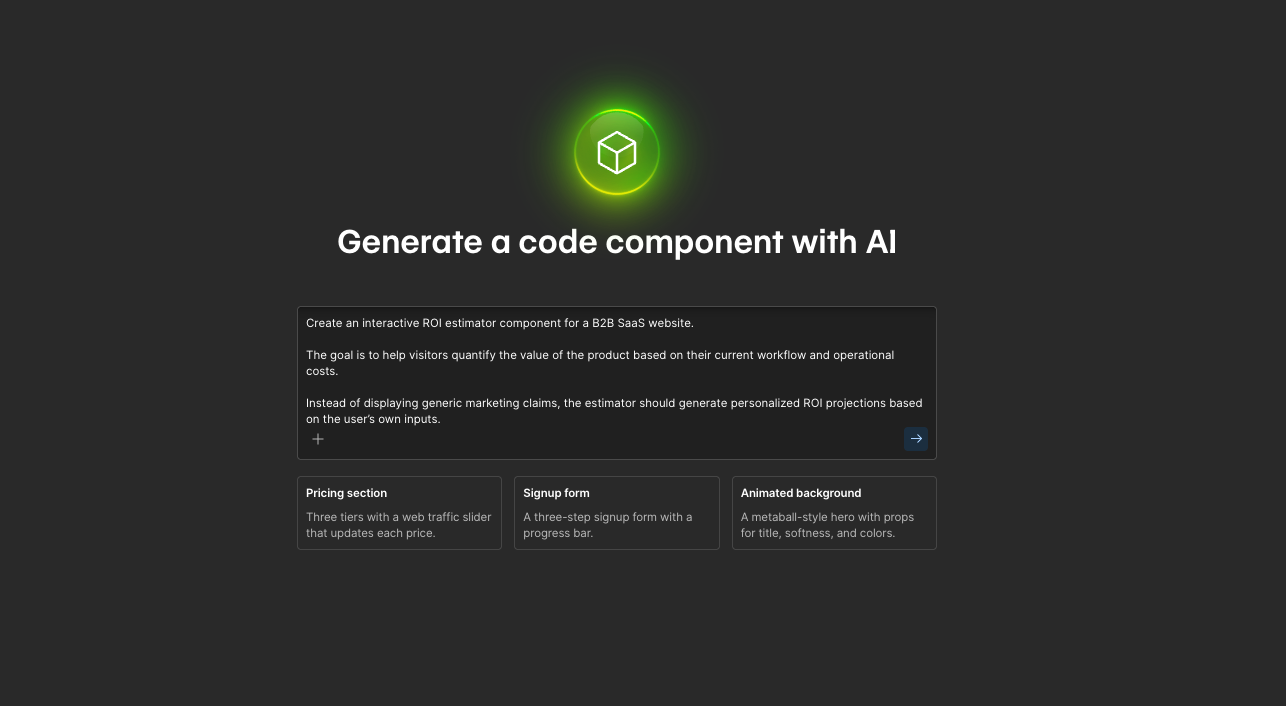
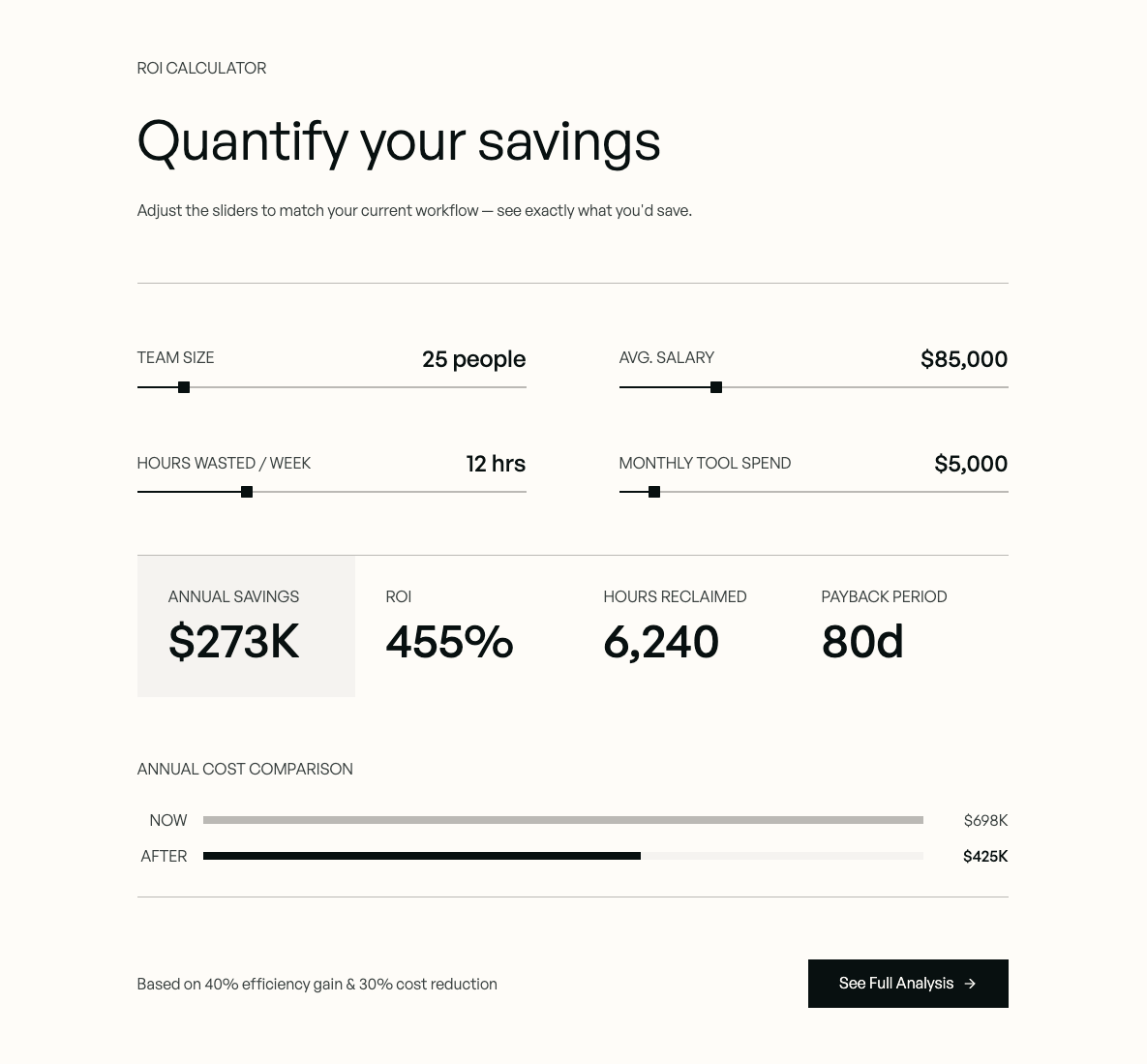
Different from a pricing calculator. An ROI estimator asks the visitor to input their current state, such as "how much time does your team spend on X per week?", and shows them what they stand to gain. It makes the abstract business case visceral. It turns a claim ("our customers save an average of 12 hours per week") into a personal number ("based on what you told us, your team would save 47 hours per month").
This is high-conversion territory for B2B SaaS. It's also exactly the kind of component that used to require a dedicated development sprint.
4. A filterable resource or case study library
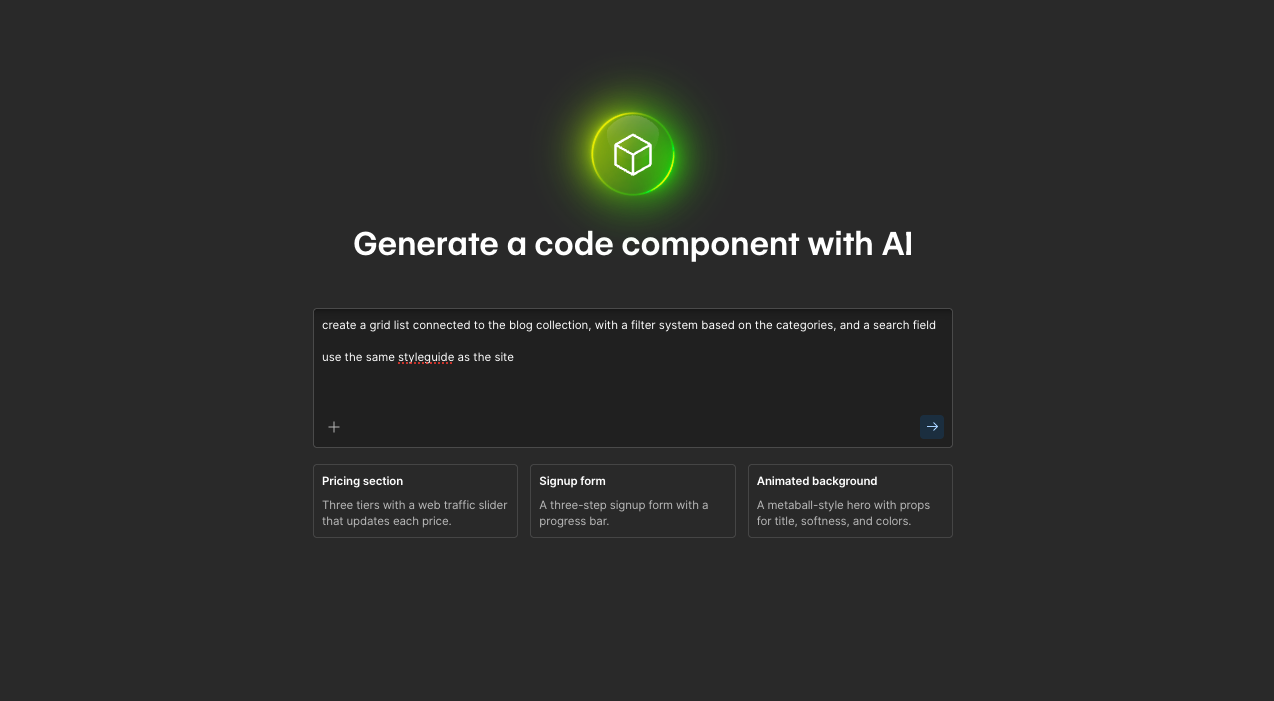
If you have a growing library of case studies, blog posts, or resources on your site, filtering by tag or category is a standard expectation. The native Webflow CMS handles collections well, but client-side filtering, where results update instantly without a page reload, requires custom code.
AI code components handle this. Connect it to your CMS collection, define the filter categories, and the component manages the rest.

The real limitations
If you've read this far, hoping for a tool that makes developers redundant, that's not the honest reading.
AI code components are genuinely useful. They also have hard constraints, and knowing them upfront saves you from building something in development that can't ship.
React only
Every AI code component is written in React. If your team works with Vue, Angular, or Svelte, those are not supported here. Webflow has made a clear architectural bet on React for this feature.
Single-file only
Each AI code component is a single file. Multi-file components, with their own stylesheets or helper files, are not supported at this time. For simple to moderately complex components, this is fine. For anything with significant complexity, you're going to hit the ceiling.
Plan requirements
You can generate AI code components on any Webflow plan. But to publish a site containing them, you need a CMS Site plan or higher, plus a paid Workspace plan. If you're on a basic site plan, the component will work in development but won't go live without an upgrade.
Role requirements
Creating Webflow AI code components requires the Site Manager or Designer role. Marketers on a Content Editor role can view components but can't build them.
The AI is a first draft, not a finished product
This one matters most. The output you get from a prompt is a strong starting point. For straightforward components, it may need minimal refinement. For anything with complex state management, external API connections, or specific edge-case behavior (empty states, error handling, loading logic), you will need someone who can read and edit React code to get it to production quality.
Your design system is the ceiling
The AI pulls from what already exists in your Webflow workspace. If your styles are inconsistent (mixed-use of global classes, ad-hoc color values, components that don't follow a clear system), the generated component inherits that inconsistency. Clean in, clean out.
When to build it yourself, and when to bring in a developer
Here's a practical framework:
The honest rule of thumb: if you can describe what you want in one clear sentence and the output works on the first or second iteration, you're in DIY territory. If the component you need requires more than two or three rounds of "this isn't quite right," you're at the point where a developer's time is faster and cheaper than your own.
What AI code components change is the starting point. A developer who previously spent two days building a pricing calculator from scratch can now spend two hours refining an AI-generated one. That's the real leverage. Not replacing expertise, but making it go further.
If you're running on a Webflow retainer with a dev partner, this is worth a conversation. The scope of what's achievable within a given number of hours has shifted.
How to get started without wasting your first session
A few things that make the difference between a useful first session and a frustrating one:
Check your plan before you build
Confirm you're on a CMS plan or higher if you intend to publish. There's nothing worse than building something solid and hitting a wall at the publish step.
Clean up your design system first
If your Webflow workspace has inconsistent styles, spend thirty minutes before your first AI session making sure your global colors, typography, and key classes are properly defined. The AI will thank you by producing cleaner output.
Start with something simple
Don't start with the ROI estimator. Start with a basic calculator. Get familiar with the iteration cycle before attempting anything complex.
Be specific in your prompts
Vague prompts produce generic components. "A pricing calculator" gives you a generic starting point. "A pricing calculator for a SaaS product with three plan tiers, a toggle between monthly and annual billing, and a highlighted 'most popular' option" gives you something closer to what you actually need.
Iterate before you touch the code
Let the AI do as much as it can through conversation before opening the code editor. Once you're in the code, you lose the AI's ability to make structural changes cleanly.
Have a developer review before publishing to a high-traffic page
Not because the AI output is inherently broken, but because edge cases are invisible until traffic finds them.
Our honest take
Webflow AI code components don't change the fundamentals of good web development. What they change is the cost of getting to a first working version.
That shift is meaningful. For marketing teams, it means the interactive experience you've been deferring to "the next sprint" is now a reasonable ask for this week. For developers, it means more of their time goes toward refinement and craft rather than scaffolding.
The gap between what marketing teams want to put on the web and what they can actually ship without developer support is a real, expensive problem. AI code components shrink that gap. They don't close it entirely and anyone telling you otherwise hasn't tried to build something complex with them yet.
But for the right use cases, built with the right expectations, they work. And as a Webflow Premium Partner agency that builds marketing sites for B2B companies every day, we think that's worth taking seriously.
If you're trying to figure out where AI code components fit into your specific site and workflow, we're happy to talk through it.
Frequently Asked Questions
Do I need to know how to code to use Webflow AI code components?
No. You describe what you want in plain English and the AI generates the React code. You can iterate entirely through conversation without opening the code editor. That said, for complex or production-critical components, having a developer review the output is still recommended.
What plan do I need to use Webflow AI code components?
Generating AI code components is available on all Webflow plans. To publish a site containing them, you need a CMS Site plan or above plus a paid Workspace plan.
What can marketing teams actually build with Webflow AI code components?
Pricing calculators, ROI estimators, multi-step conditional forms, filterable content libraries, animated hero sections, location finders, and other interactive experiences that previously required dedicated developer time.
What are the main limitations of Webflow AI code components?
Components are React-only and single-file. Publishing requires a paid CMS plan. Complex components with external API dependencies or custom state management will still need developer refinement.
When should I involve a developer instead of building it myself?
When the component needs external API connections, handles complex state across multiple interactions, or is going onto a high-traffic production page. AI code components are a strong starting point — a developer's role shifts to refinement rather than building from scratch.
How is this different from what Webflow App Gen offered?
App Gen was paused by Webflow in April 2026. AI code components are the current recommended path for building interactive experiences inside Webflow. They're focused on reusable components rather than full-stack apps, and they live natively on the component canvas alongside the rest of your design system.
Born and raised in northern Morocco, Tarik is a web designer and developer with over a decade of experience working with startups, established brands, and design agencies. When he’s not building websites, you’ll find him spending quality time with his family or watching football.